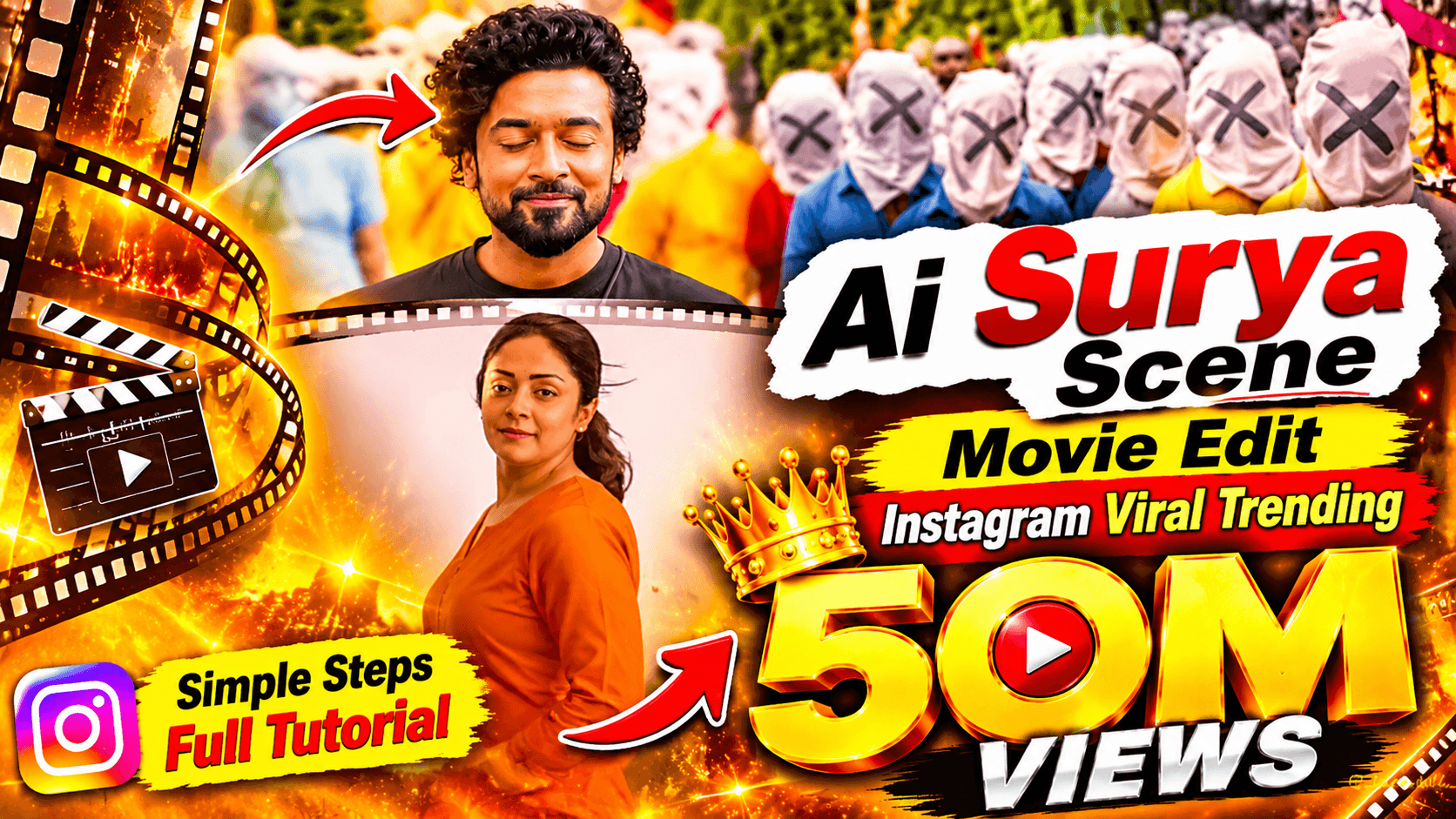
How to Create AI Surya Scene Movie Edit – Instagram Viral Trending Video Tutorial
Want to create the trending AI Surya Scene Movie Edit video for Instagram? In this complete tutorial, you will learn how to create cinematic movie-style AI videos using artificial intelligence tools. If you have seen viral movie scene edits, realistic AI characters, dramatic cinematic effects, and creative Instagram Reels, this guide will help you understand how to create your own version.
AI-generated movie scene edits are becoming increasingly popular among Instagram creators and video editors. With modern AI image generation and AI video generation tools, you can transform your creative ideas into cinematic scenes featuring realistic characters, dramatic backgrounds, movie-style lighting, and impressive visual effects.
Reference video..
Video prompt..
SCENE MOVIE PROMPT 🎬
Create a 10-second cinematic romantic short film, vertical 9:16, dreamy music-video style. Exactly 10 shots with cuts at 1.0s, 2.4s, 4.2s, 4.6s, 5.4s, 6.2s, 7.0s, 7.8s and 8.8s. There is NO cut between 2.4s and 4.2s — that part is one single continuous orbit shot.
CHARACTERS (only these two real people; nobody else has a visible face):
THE MAN: the exact person in @image1. Same face, same skin tone, same hairstyle, same glasses or no glasses, same age and gender as @image1. Clothes exactly as in @image1; if they are not fully visible, a plain dark navy crew-neck T-shirt.
THE WOMAN: the exact person in @image2. Same face, same skin tone, same hairstyle and hair length, same age and gender as @image2. Clothes exactly as in @image2; if they are not fully visible, a sleeveless orange kurta with cream straight trousers and flat sandals.
Real skin texture, no beautification, no face change. Never mix the two faces. Clothes never change between shots.
FACE LOCK (most important): THE WOMAN’s face must be exactly @image2 in EVERY shot where her face is visible — in the far shots, the full-body shots and the turn with the hair flip, not only in the close-up. Same lip shape and lip size, same nose, same jawline and chin, same eye shape, same eyebrows, same face width. Her face in Shot 6 and Shot 7 must look like the same person as her close-up in Shot 9. The same rule applies to THE MAN and @image1 in every shot.
THE CROWD: Many people walking fast in a busy outdoor street, but none of them has a face — every head is covered with a plain white cloth with a simple black X drawn on it, like faceless strangers. They wear everyday colourful T-shirts and shirts (red, blue, yellow, green). They are only background and ALWAYS shown as fast time-lapse long-exposure motion blur: their bodies smear into colourful streaks of red, blue, yellow and green, the white X heads become soft white streaks. They are never sharp and never walk at normal speed. Calm and artistic, not scary.

LOOK: Real cinema camera, shallow depth of field, soft warm natural light for the man’s shots; soft pastel lavender studio light for the woman’s dream world. Smooth, emotional, slightly slow feel for the two people; fast time-lapse speed for the crowd.

SHOT TIMELINE:
SHOT 1 (0.0–1.0s): Close-up of THE MAN’s face, eyes closed, a small peaceful smile, as if he is imagining someone. Soft blurred warm background. Very slow push-in.
SHOT 2 (1.0–2.4s): The camera rushes forward through the busy crowd of faceless people with white X cloth heads; everything is in heavy speed-ramp motion blur, colourful streaks flying past the lens, only a few X heads briefly readable.

SHOT 3 (2.4–4.2s) — ONE CONTINUOUS ORBIT, NO CUT: The shot starts directly behind THE MAN, showing the back of his head and shoulders, standing still in the middle of the rushing faceless crowd. Then, in one smooth unbroken camera move, the camera circles around him at the same height and distance — moving from behind, past his side profile, to his front — a smooth 180-degree half-circle, like a steady gimbal orbit. The camera never cuts, never jumps and never fades during this move; every moment of the orbit is visible, including his side profile at about 3.2s. By 3.6s the camera is in front of him and slowly settles into a front medium shot: THE MAN stands perfectly still and perfectly sharp, a soft happy smile, while the faceless people rush past around him so fast that they become blurred colourful streaks (time-lapse long-exposure effect). He stays in the exact same spot and pose during the whole orbit; only the camera moves.
SHOT 4 (4.2–4.6s): The streaking crowd blur glows brighter and brighter until the whole frame turns into a pure white light flash (a white-out transition, no face in this shot).
SHOT 5 (4.6–5.4s): A dreamy empty pastel lavender space with a soft white glow. THE WOMAN stands far away with her back to the camera, long hair down. The camera slowly moves toward her.
SHOT 6 (5.4–6.2s): Knee-up shot (camera a little closer than full body so her face stays clear): THE WOMAN turns around toward the camera with a graceful hair flip, her hair flying in a soft wave, starting to smile. Her face is exactly @image2.
SHOT 7 (6.2–7.0s): Medium shot from the waist up: THE WOMAN stands facing the camera, hands relaxed, looking straight into the lens with a sweet, shy smile. Her face is clearly visible and exactly @image2 — same lips, nose and jaw as in her close-up.
SHOT 8 (7.0–7.8s): Close-up of THE MAN, eyes still closed, his smile grows wider, as if he can see her in his mind.
SHOT 9 (7.8–8.8s): Close-up of THE WOMAN’s face against the soft lavender background, a big bright happy smile, eyes looking into the camera.SHOT 10 (8.8–10.0s): Extreme close-up of THE MAN’s face in the same warm street light and blurred warm background as Shot 1 (not lavender), very slow push-in, peaceful smile; at 9.6s he slowly opens his eyes and looks into the camera. End on his eyes.AUDIO: Very soft natural ambience only (light crowd hum in the crowd shots, soft airy tone in the dream shots). No music, no dialogue, no voices.STRICT NEGATIVE: No hard cut, jump cut or fade between the back view and the front view of the man (it must be one smooth orbit), no visible faces in the crowd, no third main character, no face change or mixing, no clothes change between shots, no text, no subtitles, no logos, no watermark, no horror or scary look, no blood, no cartoon or animated look, no fast motion on the two main characters, no different face for the woman in the wide or full-body shots, no changed lips or face shape, no sharp normal-speed crowd, no lavender background in the man’s shots.
The AI Surya Scene Edit is a creative movie-inspired video concept that combines AI-generated characters, cinematic storytelling, dramatic scenes, and professional video editing techniques.
In this step-by-step tutorial, PG EDITOR will explain how to create AI movie scenes, generate realistic images, animate characters, add cinematic camera movements, and edit everything into an attractive Instagram Reel.
Whether you are a beginner or an experienced content creator, this tutorial will help you understand the complete AI movie video creation process.
What Is AI Surya Scene Movie Edit?
AI Surya Scene Movie Edit is a creative AI-generated movie-style video concept inspired by cinematic scenes and dramatic storytelling.
Using AI image generation and video generation technology, creators can generate realistic-looking characters, movie-style environments, dramatic expressions, cinematic backgrounds, and impressive visual effects.
You can create different types of scenes, including dramatic character introductions, emotional moments, action-inspired sequences, cinematic close-ups, and movie-style transitions.
AI technology allows you to experiment with different characters, outfits, environments, camera angles, and visual styles without recording every scene using a physical camera.
Why Is AI Movie Scene Editing Trending on Instagram?
AI video creation has introduced new possibilities for social media content creators. Many creators are experimenting with AI-generated movie scenes, cinematic character animations, realistic visual effects, and creative storytelling.
Here are some reasons to explore AI movie scene editing:
- Create cinematic movie-style videos.
- Generate realistic AI characters.
- Experiment with dramatic scenes and expressions.
- Create impressive AI-generated backgrounds.
- Add professional camera movements.
- Make creative Instagram Reels.
- Explore AI image-to-video technology.
- Create unique movie-inspired visual content.
What Do You Need to Create AI Surya Scene Movie Edit?
Before starting the editing process, prepare these basic requirements:
1. An AI image generator for creating realistic character images.
2. An AI video generator for animating images.
3. Detailed AI image and video prompts.
4. A video editing application.
5. Suitable background music and sound effects.
6. A smartphone or computer for editing and exporting.
Some AI platforms offer free credits or limited free generations, while advanced features may require a paid subscription.
Step-by-Step Guide to Create AI Surya Scene Instagram Viral Video
Step 1: Choose Your Movie Scene Concept
First, decide which type of cinematic scene you want to create.
You can choose a dramatic entry scene, an emotional movie moment, a powerful character introduction, or an action-inspired sequence.
Plan your video before generating images. A clear concept will help you create better scenes and maintain consistency throughout the video.
Step 2: Generate Realistic AI Character Images
Now use an AI image generator to create your main characters.
Describe the character's appearance, hairstyle, clothing, facial expressions, body posture, and environment.
For a professional movie-style appearance, use detailed descriptions of lighting, camera angles, background elements, and cinematic composition.
If you want the same character throughout your video, use a consistent reference image whenever your AI tool supports it.
Step 3: Create Cinematic AI Movie Scenes
After generating your character images, create different scenes according to your storyline.
Here are some creative scene ideas:
- A cinematic hero introduction.
- A dramatic character close-up.
- A movie-style walking scene.
- A powerful background reveal.
- An emotional character interaction.
- A dramatic group scene.
- A cinematic final shot.
Try different camera angles and backgrounds to make every scene visually interesting.
Step 4: Convert AI Images into Videos
Once your images are ready, upload them to an AI image-to-video generator.
Add motion instructions to animate the characters and background.
You can experiment with:
- Slow cinematic camera zoom.
- Smooth character movements.
- Natural facial expressions.
- Dramatic camera tracking.
- Slow-motion effects.
- Environmental movements.
- Movie-style camera transitions.
Use simple and clear movement instructions to avoid unnatural animations.
Step 5: Add Cinematic Movie Effects
To make your AI video more attractive, experiment with cinematic visual effects.
You can use dramatic lighting, realistic shadows, motion blur, depth of field, atmospheric effects, and professional color grading.
Choose effects according to the mood of your scene rather than adding too many effects.
Step 6: Edit Your AI Movie Video
After generating all your video clips, import them into your preferred video editing application.
Arrange the clips in the correct sequence and combine them into one complete video.
You can improve your final edit using:
- Cinematic background music.
- Movie-style sound effects.
- Smooth transitions.
- Color grading.
- Slow-motion effects.
- Text animations.
- Motion effects.
- Professional audio editing.
Make sure the transitions between scenes are smooth and the background music matches the mood of your video.
Step 7: Export Your Video for Instagram Reels
Once editing is complete, export your final video in vertical 9:16 format.
Choose a high-quality resolution and suitable frame rate supported by your editing application.
Before uploading, watch the complete video and check the character consistency, visual quality, transitions, and audio.
Your AI Surya Scene Movie Edit is now ready to share on Instagram Reels!
Best AI Prompts for Cinematic Movie Scene Videos
You can experiment with the following prompts to create your own cinematic AI scenes.
Prompt 1: Cinematic Hero Introduction
Create a dramatic cinematic movie-style introduction featuring a confident adult Indian male character with a stylish appearance, standing in a powerful pose. Rich cinematic lighting, realistic facial details, dramatic background atmosphere, professional movie cinematography, detailed environment, shallow depth of field, high-quality realistic visuals, vertical 9:16 composition.
Prompt 2: Dramatic Movie Scene
Create a cinematic dramatic scene featuring the same adult male character interacting with other characters in a crowded outdoor environment. Realistic facial expressions, detailed clothing, natural body language, dramatic lighting, movie-style composition, realistic background, professional cinematic camera movement, high-quality visual details, vertical 9:16 format.
Prompt 3: Cinematic Close-Up Shot
Create an ultra-realistic cinematic close-up of the same adult male character with a confident and serious expression. Detailed facial features, natural skin texture, dramatic movie lighting, beautiful background blur, professional film cinematography, realistic camera focus, cinematic atmosphere, vertical 9:16 format.
Tips to Make Your AI Movie Edit More Attractive
Follow these useful tips to improve your AI-generated movie videos:
- Always use high-quality reference images.
- Maintain consistent character appearances.
- Write detailed image and video prompts.
- Choose suitable cinematic backgrounds.
- Use realistic facial expressions.
- Avoid unnatural body movements.
- Experiment with different camera angles.
- Add suitable movie-style sound effects.
- Use professional color grading.
- Create an interesting opening scene.
- Use smooth transitions between clips.
- Export your video in high quality.
How to Upload AI Surya Scene Movie Edit on Instagram
After completing your video, open Instagram and select the Reels upload option.
Choose your edited AI movie video from your phone gallery.
Follow these simple steps:
1. Select your final AI-generated video.
2. Choose an attractive Reel cover image.
3. Write an engaging caption.
4. Add relevant hashtags.
5. Select suitable audio if required.
6. Preview the complete video.
7. Publish your Reel.
You can also share your Reel on Instagram Stories to make it easier for your followers to discover your content.
Best Platforms to Share AI Movie Scene Videos
You can share your AI-generated cinematic videos on different social media platforms.
Instagram Reels: Share your cinematic AI movie edits with your Instagram audience.
YouTube Shorts: Publish short AI-generated movie scenes for viewers interested in AI video creation and cinematic editing.
Facebook Reels: Share your creative AI movie videos with a wider audience.
WhatsApp Status: Share short cinematic video clips with your friends and followers.
Frequently Asked Questions (FAQs)
1. What Is AI Surya Scene Movie Edit?
AI Surya Scene Movie Edit is a creative AI-generated cinematic video concept inspired by movie-style scenes, characters, and dramatic storytelling.
2. How Can I Create AI Surya Scene Videos?
You can create these videos using AI image generation tools, AI video generators, and a video editing application. First generate images, convert them into animated clips, and combine them during editing.
3. Can Beginners Create AI Movie Scene Videos?
Yes! Beginners can create cinematic AI videos by following simple step-by-step instructions and using beginner-friendly AI tools.
4. Can I Create AI Movie Edits for Free?
Some AI platforms offer free credits or limited free generations. However, additional generations and advanced features may require paid subscriptions.
5. How Can I Maintain the Same Character in Every Scene?
Use consistent reference images and repeat the character's appearance, hairstyle, clothing, and other visual details in every prompt.
6. Can I Upload AI Movie Scene Videos on Instagram?
Yes. You can upload original AI-generated movie-style videos as Instagram Reels, provided they follow Instagram's Community Guidelines and applicable copyright policies.
7. Can AI Movie Scene Videos Get Millions of Views?
AI movie scene videos can attract attention through creative visuals, interesting storytelling, and engaging editing. However, millions of views are never guaranteed. Performance depends on content quality, originality, audience engagement, and platform recommendations.
Final Words
Creating an AI Surya Scene Movie Edit is a creative way to explore modern AI image generation, video animation, and cinematic editing.
With detailed prompts, high-quality reference images, realistic animations, dramatic camera movements, and professional editing, you can create impressive movie-style videos for your social media accounts.
Follow this complete tutorial, experiment with different cinematic scenes, and create your own unique AI movie edits.
If you enjoyed this tutorial, share it with your friends and keep visiting PG EDITOR for more AI video tutorials, Instagram viral trends, AI image generation guides, creative prompts, and the latest AI tools.
Keep Creating, Keep Learning, and Keep Exploring AI with PG EDITOR!
Disclaimer: This tutorial focuses on creating original AI-generated movie-inspired content. If you use footage, music, images, or recognizable elements from an existing film, make sure you have the necessary rights or permissions. The 50M Views figure in promotional artwork is an aspirational target, not a guaranteed result.