How to Create an AI Cinematic Look Transformation Video – Complete AI Editing Tutorial
Want to create a stunning cinematic look transformation video with professional portrait effects? In this tutorial, discover how artificial intelligence and modern video editing tools can help you create stylish portraits, cinematic lighting effects, and attractive visual transformations.
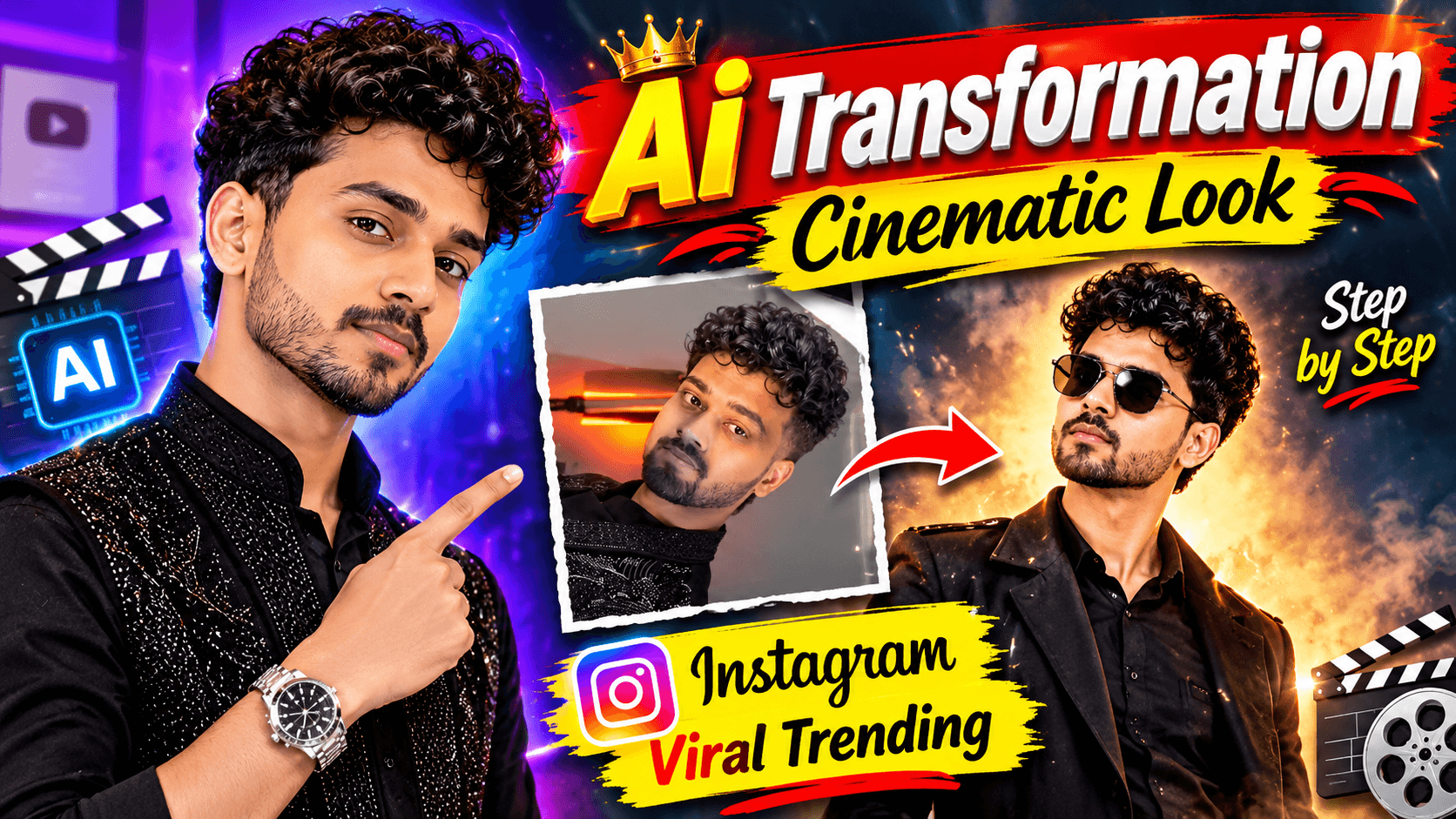
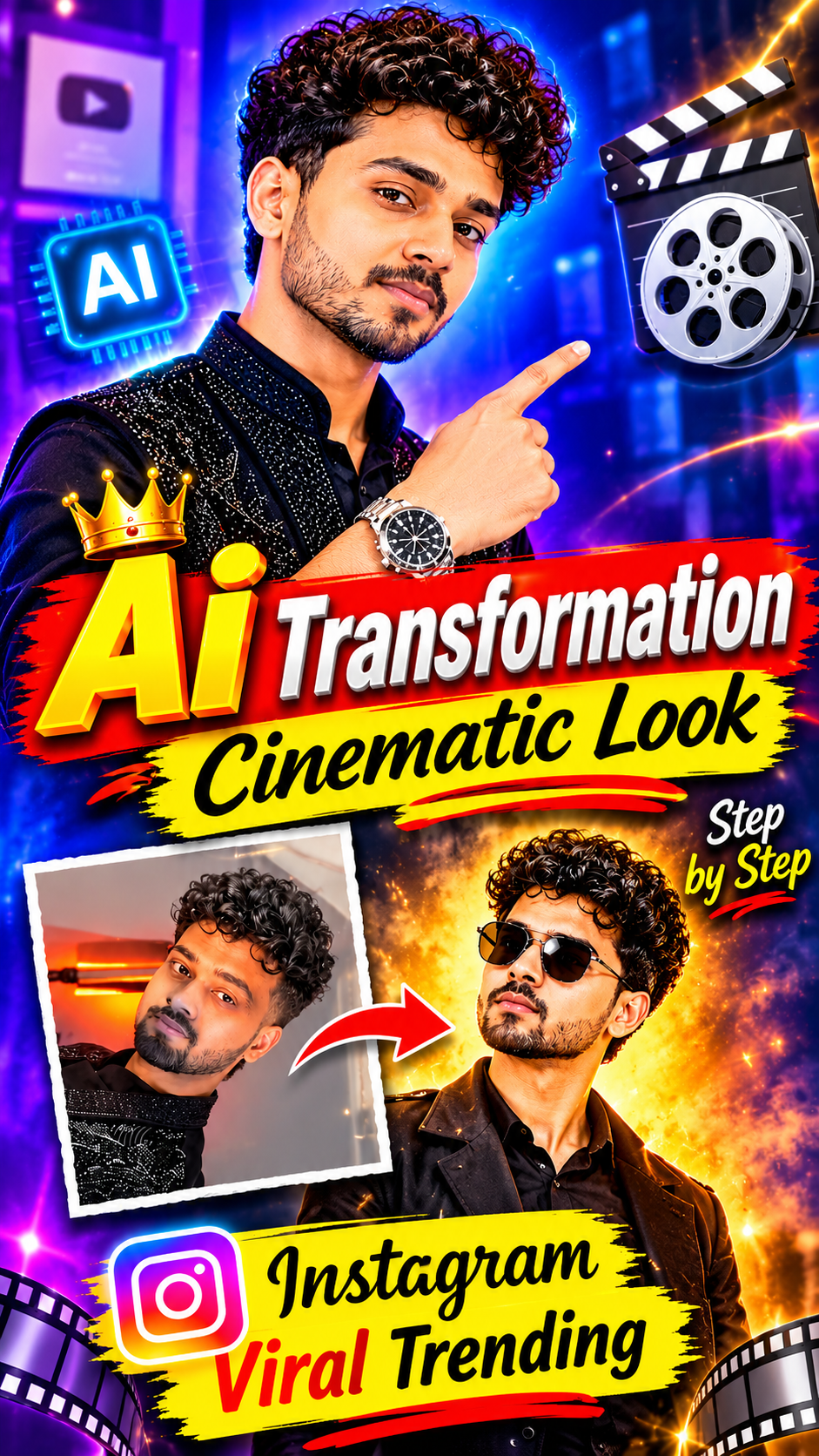
This video showcases a creative portrait transformation concept. It begins with a casual look featuring a light-colored striped shirt and transitions into a stylish black outfit with a dramatic cinematic background and warm orange lighting.
With AI-powered creative tools, you can experiment with different portrait styles, clothing concepts, backgrounds, lighting effects, and cinematic visual designs.
Video prompt..
Use @video1 as the exact video reference and @image1 as the male character identity reference.


Replace ONLY the main male character with the person from @image1.


IDENTITY PRESERVATION


Preserve the recognizable face shape, eyes, eyebrows, nose, lips, jawline, hairstyle, hair texture, beard, moustache, skin tone and natural facial details from @image1.


Keep his identity consistent throughout every frame.


TIMESTAMP-WISE ACTIONS


0–2 SECONDS:

The male character is seated indoors in the same original position, wearing the same light yellow striped shirt as shown in the reference video. He holds the same object in his hands and looks toward the camera.


2–4 SECONDS:

He looks down toward the object in his hands, maintaining the same head movement, facial expression and seated posture.


4–6 SECONDS:

He raises his attention toward the camera and performs the same natural hand gestures shown in the reference.


6–8 SECONDS:

Recreate the original close interaction with the camera, including the same hand movement toward the lens and facial expression.


ENVIRONMENT


Preserve the original dark indoor room, wall-mounted television, orange decorative lighting, background furniture and original composition.


CAMERA


Same camera angle, distance, perspective and framing. No unnecessary camera movement.


QUALITY


16K Ultra HD quality target, highest available resolution, crystal-clear face, sharp eyes, realistic skin pores, natural hair strands, detailed facial hair, professional DSLR appearance, realistic shadows and cinematic colour grading.


STRICT RULES


Only replace the male identity. Preserve the original scene, yellow striped shirt, objects, actions and background. No face morphing, no identity drift, no blurry face, no artificial skin, no distorted hands and no additional characters.


FINAL OUTPUT: A photorealistic recreation of the original first 8 seconds with the male identity from @image1.


GOOGLE OMNI – PART 2


MALE ONLY CHARACTER REPLACEMENT


Use @video1 as the original video reference and @image1 as the strict male identity reference.


Replace ONLY the main male character. Preserve all original visual elements.


TIMESTAMP-WISE ACTIONS


0–2 SECONDS:

Recreate the extreme close-up of the male face against the warm orange background. Preserve the original camera distance, eye direction and facial expression.


2–4 SECONDS:

Maintain the original close-up composition, focusing on the male's eyes, eyebrows, nose, lips, beard and natural facial details.


4–6 SECONDS:

Recreate the transition from the extreme facial close-up toward the wider portrait composition. Preserve the original timing and orange cinematic background.


6–8 SECONDS:

The male character transitions into the original black outfit appearance. Recreate the same seated or posed composition, head direction and facial expression shown in the reference.


FACE CLARITY PRIORITY


The face must remain extremely sharp and recognizable.


Preserve:


- Exact recognizable facial identity from @image1.

- Natural skin texture and pores.

- Original eye shape and eye colour.

- Original nose and lips.

- Natural beard and moustache.

- Hairstyle and hairline.


Avoid artificial face reconstruction or beauty filters.


LIGHTING AND BACKGROUND


Preserve the warm orange sunset-style lighting, dark interior, illuminated wall fixture and original background colours.


CAMERA


Maintain the original close-up, extreme close-up and transition framing. Preserve the original orientation and composition.


16K ULTRA QUALITY


16K Ultra HD quality target, maximum available resolution, crystal-clear facial details, sharp eyes, realistic skin texture, detailed hair strands, HDR lighting, premium cinematic DSLR quality and natural colour grading.


STRICT NEGATIVE RULES


No identity drift, no face morphing, no blurry face, no plastic skin, no distorted facial structure, no extra fingers, no unnecessary camera movement and no invented actions.


FINAL OUTPUT: Recreate the original 8–16 second sequence with the male character from @image1.


GOOGLE OMNI – PART 3
MALE ONLY CHARACTER REPLACEMENT
Use @video1 as the strict video reference and @image1 as the male character identity reference.

Replace ONLY the original male character with the person from @image1.

TIMESTAMP-WISE ACTIONS
0–2 SECONDS: The male character appears in the same black textured outfit with the original open neckline and accessories. Recreate the same seated pose, head position and camera framing.

2–4 SECONDS: The male maintains the same position while looking toward the camera. Preserve his original serious facial expression and natural body posture.

4–6 SECONDS: Recreate the original close-up portrait. The male slightly changes his head direction while maintaining the same facial expression and camera composition.

6–8 SECONDS: The male performs the same hand gesture near his neck and collar area. Preserve the exact movement, hand positioning and original outfit details.

8–8.6 SECONDS: Finish with the same final portrait composition, facial expression and camera framing as the reference video.

OUTFIT PRESERVATION
Recreate the original black textured outfit, neckline, fabric details and visible accessories from this section of @video1.

Maintain consistent clothing throughout this part.

FACE AND IDENTITY LOCK
The male must remain recognizable as @image1.

Preserve his natural:

Facial structure.
Eyes and eyebrows.
Nose and lips.
Jawline.
Beard and moustache.
Hairstyle and hairline.
Skin tone and skin texture.
No artificial beautification or facial changes.

CINEMATIC LIGHTING
Preserve the warm orange background illumination, dark indoor atmosphere, realistic shadows and original cinematic lighting.

16K ULTRA HD QUALITY
Highest available output resolution, 16K quality target, crystal-clear face, sharp eyes, realistic skin pores, detailed beard, individual hair strands, accurate clothing texture, premium DSLR portrait quality and cinematic HDR.

STRICT NEGATIVE RULES
No face morphing, no identity drift, no blurry face, no artificial skin, no distorted hands, no extra limbs, no outfit swapping, no unnecessary scene changes and n
o cartoon or 3D CGI appearance.

FINAL OUTPUT: Create a realistic continuation of the original video with the male identity from @image1, preserving the original final portrait sequence.
Google flow link..
https://labs.google/fx/tools/flow
At PG EDITOR, our goal is to help beginners and content creators understand modern AI image generation, AI video creation, and professional editing techniques.
AI Tools for Cinematic Portrait Transformation
Here are some tools you can explore to create similar visual effects.
1. ChatGPT
Use ChatGPT to develop creative ideas, write detailed AI image prompts, and plan your portrait transformation scenes.
2. Google Gemini
Explore Google Gemini for AI image-generation workflows, visual concepts, and creative portrait ideas.
3. Kling AI
Kling AI offers image-to-video features that can help animate portrait images and create smooth visual transitions.
4. Runway AI
Runway provides AI-powered video generation and creative editing features for cinematic visual projects.
5. CapCut
Use CapCut to combine video clips, add transitions, adjust colors, apply cinematic effects, and export your final video.
Note: These tools are suggested options for creating a similar transformation. They are not verified as the original tools used in the supplied video.
How to Create an AI Cinematic Portrait Transformation
Step 1: Prepare Your Portrait Image
Choose a high-quality portrait photograph with clear facial details and good lighting.
Step 2: Create a Cinematic Look
Use an AI image-generation tool to experiment with different outfits, hairstyles, backgrounds, and cinematic lighting.
Step 3: Generate a Second Portrait
Create another portrait with a stylish black outfit, dramatic background, and warm orange lighting.
Try to maintain the same facial identity if you have permission to use the reference photograph.
Step 4: Animate Your Portrait
Explore image-to-video features in Kling AI or other suitable AI video generators to create smooth movements and cinematic camera effects.
Step 5: Edit in CapCut
Import your clips into CapCut. Add smooth transitions, suitable music, color grading, and cinematic effects.
Step 6: Export Your Video
Export your final creation in vertical 9:16 format for Instagram Reels and YouTube Shorts.
AI Prompt for Cinematic Black Outfit Portrait
Create a highly realistic cinematic portrait of an adult Indian man wearing a stylish black textured shirt. Give him naturally styled dark curly hair, a neatly maintained beard, and a confident expression. Place him against a dramatic dark interior background with warm orange ambient lighting. Add professional portrait photography, realistic skin texture, cinematic shadows, shallow depth of field, detailed clothing texture, premium editorial photography style, natural facial proportions, and vertical 9:16 composition.
Tips for Professional AI Portrait Editing
- Use high-resolution reference photographs.
- Maintain consistent facial identity.
- Choose realistic clothing styles.
- Experiment with cinematic lighting.
- Use detailed image-generation prompts.
- Avoid unnatural facial transformations.
- Apply smooth video transitions.
- Use suitable background music.
- Export in high quality.
Frequently Asked Questions
1. How Can I Create an AI Cinematic Portrait?
You can explore AI image generators, portrait editing tools, and video editors to create cinematic portrait transformations.
2. Which AI Tools Can Help Create Cinematic Videos?
ChatGPT, Google Gemini, Kling AI, Runway, and CapCut can help with different stages of creative planning, image generation, animation, and editing.
3. Can Beginners Create AI Portrait Transformations?
Yes. Beginners can experiment with AI image generation and simple video editing techniques to create attractive portrait transformations.
4. Can I Create AI Cinematic Videos on Mobile?
Yes. You can use supported mobile applications and web-based AI tools to create and edit cinematic videos.
5. Can I Share AI Portrait Videos on Instagram?
Yes. You can share original AI-generated portrait videos on Instagram, provided they follow applicable platform guidelines and copyright requirements.
Final Words
AI cinematic portrait transformation is an exciting way to explore creative photography, AI image generation, and modern video editing.
By combining creative prompts, suitable AI tools, realistic portraits, cinematic lighting, and professional editing techniques, you can develop your own unique visual style.
Keep experimenting, learn new editing techniques, and create original content.
Visit PG EDITOR for more AI tutorials, cinematic editing guides, AI image-generation prompts, video editing tips, and the latest creative tools.
PG EDITOR – Learn, Create and Explore the World of AI!
Disclaimer: This article is for educational purposes. Tool availability and features may change. Always use photographs, music, and video assets that you own or have permission to use.